
Last reviewed: October 7, 2026
Quick answer
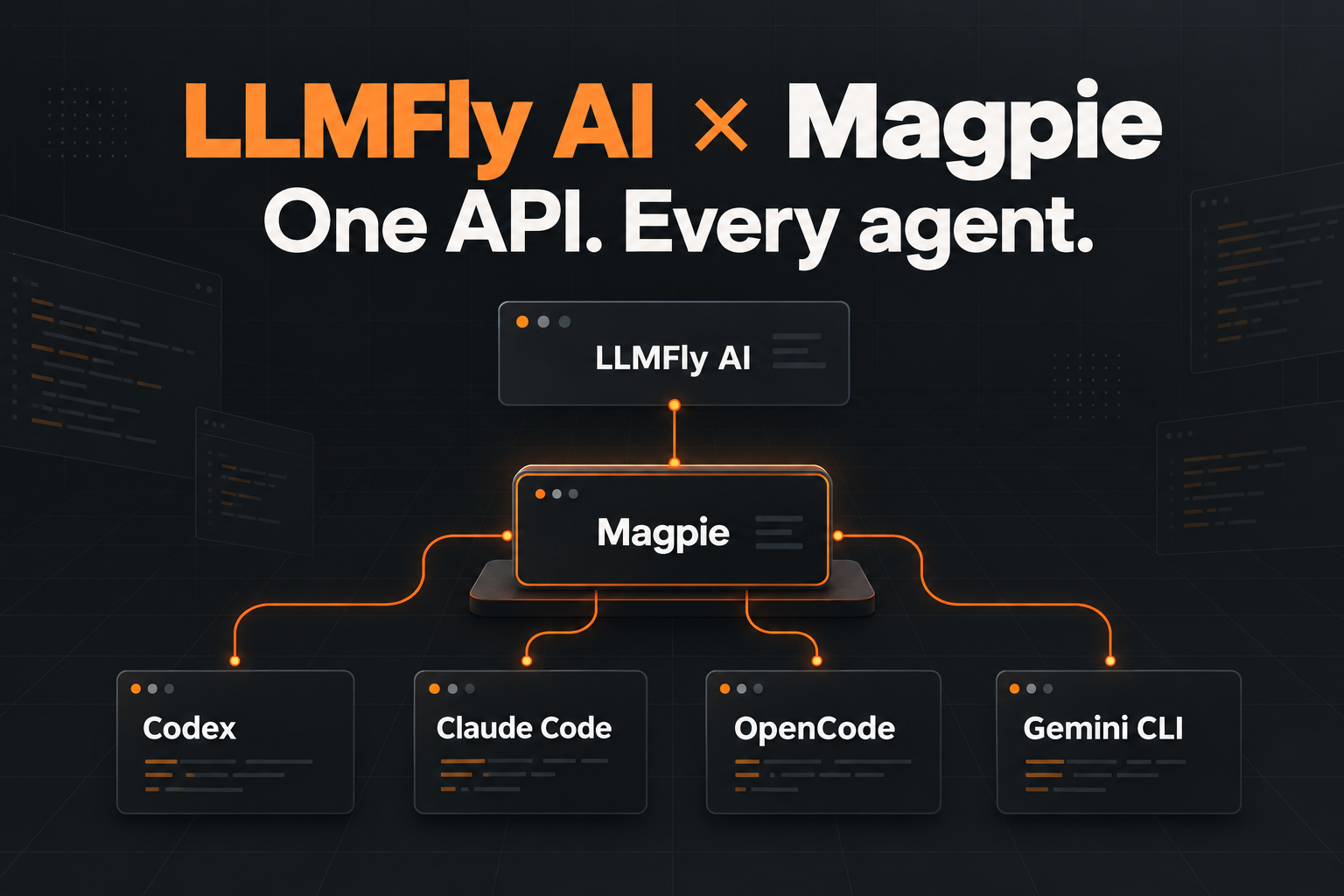
Yes. You can connect LLMFly AI, a multi-model AI API
platform, to Magpie and then make its available GPT, Claude, Gemini, and
Grok routes selectable across Codex, Claude Code, OpenCode, Gemini CLI,
and other supported agents. Add LLMFly AI as a custom
provider in Magpie, enter the compatible endpoints, paste a
dedicated API key, and use the exact model IDs shown in LLMFly AI Model Plaza.
As of October 7, 2026, Magpie does not list LLMFly AI among its
built-in provider presets. The supported setup is therefore a custom
provider—not a one-click preset. This distinction matters because it
determines which endpoint fields you must enter and how model discovery
works.
| Magpie field | LLMFly AI value |
|---|---|
| Provider name | LLMFly AI |
| OpenAI Chat base URL | https://app.llmfly.ai/v1 |
| OpenAI Responses base URL | https://app.llmfly.ai/v1 when supported by the selectedroute |
| Anthropic base URL | https://app.llmfly.ai |
| API key | A dedicated key created in the LLMFly AI console |
| Models | Exact IDs copied from Model Plaza |
Do not append /chat/completions,
/responses, or /v1/messages to the base URL
fields. Magpie and the client add the endpoint path required for each
request.
What does
Magpie do when connected to LLMFly AI?
Magpie is an MIT-licensed local
model gateway and configuration manager. It runs on your computer at
127.0.0.1:3425, points supported agents at that local
gateway, and forwards each request to the provider serving the selected
model.
Magpie speaks OpenAI, Anthropic, and Gemini API formats and can
translate between them, including streaming and tool calls. LLMFly AI
supplies access to leading models through one account and API balance.
Together, the two products solve different parts of the workflow:
- LLMFly AI supplies model access. Its catalog
includes routes for leading GPT, Claude, Gemini, and Grok models, with
current availability and pricing shown in Model Plaza. - Magpie manages local agent configuration. It lets
you choose which provider and model each installed agent should use
without repeatedly editing configuration files. - Magpie can add routing and fallback. Multiple
accounts or providers can be placed behind a routing group when you need
quota-aware selection or failover.
Magpie is not the upstream model provider, and LLMFly AI is not a
replacement for Magpie’s local configuration layer.
How do you add LLMFly AI to
Magpie?
1. Create a dedicated
LLMFly AI API key
Sign in at app.llmfly.ai, open
the API Keys page, and create a key specifically for Magpie. A name such
as magpie-main makes later usage review and key rotation
easier.
Do not reuse a key exposed in a screenshot, source repository, public
import link, or shared configuration file.
2. Confirm the
model IDs available to your key
Open Model Plaza and
copy the exact IDs of the models you intend to use. Model IDs are
case-sensitive, and availability can differ by route or account
group.
The public LLMFly AI model
directory explains model families and workloads, but Model Plaza is
the source of truth for the IDs, prices, and routes currently available
to your key.
3. Add a custom provider in
Magpie
In Magpie:
- Open Providers.
- Select Add provider.
- Choose the custom-provider option.
- Enter
LLMFly AIas the provider name. - Enter
https://app.llmfly.ai/v1as the OpenAI-compatible
base URL. - Enter
https://app.llmfly.aias the Anthropic-compatible
base URL if you plan to use Claude Code or Anthropic-format
requests. - Paste the dedicated LLMFly AI API key.
- Add the exact model IDs from Model Plaza if Magpie cannot retrieve
the model list automatically. - Save the provider and run Magpie’s provider test.
Giving Magpie both compatible endpoints is useful because each agent
can use the protocol it speaks natively. Magpie can translate when
necessary, but native protocol behavior is still the safer first test
for tool calling, reasoning blocks, streaming, and error handling.
4. Assign an LLMFly
AI model to each agent
Open Magpie’s Agents tab and select a model for
every installed tool you want to route through it. Magpie currently
documents support for clients including Codex, Claude Code, Gemini CLI,
OpenCode, Pi, Goose, Cursor, Crush, and others.
The change normally applies to the next session. If an agent is
already running, close that session and start a new one. Codex may also
require an application restart before it rebuilds its model list.
Which endpoint should each
tool use?
The correct endpoint depends on the protocol expected by the
client—not only on the company that created the model.
| Client or request type | Recommended LLMFly AI endpoint | What to verify |
|---|---|---|
| Codex and OpenAI-compatible clients | https://app.llmfly.ai/v1 |
Responses support, streaming, tools, and exact model ID |
| Claude Code and Anthropic-format clients | https://app.llmfly.ai |
Anthropic Messages behavior, auth variable, and model compatibility |
| Custom scripts using OpenAI SDK conventions | https://app.llmfly.ai/v1 |
Endpoint supported by the selected route |
| Other agents managed by Magpie | Local Magpie gateway | Magpie writes the local gateway and selected model into the agent configuration |
“OpenAI-compatible” describes an API format. It does not mean that
Claude, Gemini, Grok, and GPT models behave identically, nor does it
guarantee that every optional OpenAI endpoint or parameter is available
on every route.
Can one
LLMFly AI key work across Codex and Claude Code?
It can, but separate keys are usually easier to operate.
Create one key for Magpie or, for tighter tracking, one key per
machine or workflow. Separate keys make it easier to identify unusual
usage, revoke one integration without disrupting the others, and compare
cost by tool.
Magpie stores provider keys locally in
~/.config/magpie/providers.json, according to its
documentation. Protect that file as a secret. Never commit it to Git or
place a live key in a public Magpie import URL.
How should
developers choose models in Magpie?
Do not route every task to the most capable or most expensive model.
Start with a workload-based policy:
- Use a strong coding or reasoning model for repository-wide
refactors, debugging, and long agent loops. - Use a lower-cost model for extraction, classification, formatting,
summaries, and repetitive subtasks. - Keep a tested fallback for rate limits, outages, and route-specific
errors. - Compare cost per accepted result, not only cost per
million tokens.
For current options, consult the LLMFly AI model directory and then
confirm the live route in Model Plaza. Prices and model availability can
change, so avoid hard-coding a discount or model list into a long-lived
Magpie profile without periodically reviewing it.
How do Magpie
routing groups work with LLMFly AI?
Magpie routing groups can put several models or accounts behind one
group name. Depending on the selected strategy, Magpie can choose
accounts intelligently, follow a fixed order, rotate conversations,
prefer the least-used account, or fall back when a member is
unavailable.
This can be useful when you have:
- More than one LLMFly AI key with separate operational purposes;
- An LLMFly AI model plus an official provider route for fallback
testing; - A high-capability primary model and a lower-cost backup;
- Different models for normal turns, long contexts, images, or
compaction.
Fallback is not transparent equivalence. A different model can change
tool selection, structured output, latency, safety behavior, and total
cost. Test fallback outputs with the same evaluation set used for the
primary route.
What should you test
before production use?
A successful “hello” request proves connectivity, not production
compatibility. Run a small but representative evaluation before moving a
real workflow:
- Authentication: confirm the dedicated key works and
a revoked key fails as expected. - Model identity: record the requested model ID and
verify it appears correctly in usage records. - Streaming: check that partial output arrives
cleanly without duplicated or malformed chunks. - Tool calling: test valid calls, rejected schemas,
tool errors, and multi-turn loops. - Reasoning behavior: verify how the route handles
reasoning parameters and blocks. - Long context: test realistic repository or document
sizes, not a short prompt. - Failure handling: simulate timeouts,
401,403,429, and
5xxresponses. - Cost: compare complete task cost, including
retries, cache reads, and failed attempts. - Destructive actions: require user confirmation
before an agent deletes files, changes infrastructure, or performs
irreversible operations.
Use the LLMFly AI error
reference when the upstream route rejects a request, and Magpie’s
local logs when the request does not leave the gateway correctly.
How do you
troubleshoot LLMFly AI in Magpie?
The provider test
returns 401 Unauthorized
Confirm that the key was copied completely and is still active.
Create a new dedicated key if there is any chance the original was
exposed.
The request returns
404 or “model not found”
Copy the model ID again from Model Plaza. Do not assume that a
provider’s public model name is identical to the route name available to
your LLMFly AI key.
Claude Code cannot connect
Confirm that the Anthropic base URL is the root address
https://app.llmfly.ai, not the OpenAI-compatible
/v1 address and not the full /v1/messages
path.
Codex connects but a feature
fails
Check whether the selected LLMFly AI route supports the OpenAI
Responses behavior required by that Codex workflow. API-format
compatibility does not automatically include every optional feature.
The agent still uses
the previous model
Start a new agent session. For Codex, restart the application so it
reloads the provider and model configuration.
Usage cost looks wrong
Compare Magpie’s local estimate with the LLMFly AI usage record.
Catalog metadata, provider reference prices, and the amount actually
billed by a route are not always the same number.
Frequently asked questions
Does Magpie have a
built-in LLMFly AI preset?
Not as of October 7, 2026. Add LLMFly AI as a custom provider using
its compatible endpoint addresses and a dedicated API key.
Can
Magpie discover every LLMFly AI model automatically?
It may retrieve models from the provider endpoint, but you should
still confirm every model ID and its availability in Model Plaza. If
discovery fails, enter the required IDs manually.
Does Magpie change LLMFly
AI pricing?
No. Magpie is a local gateway and configuration layer. LLMFly AI
determines the upstream route availability and billing. Check LLMFly AI pricing and Model Plaza
for current rates.
Can I
use the same LLMFly AI setup for Claude Code and Codex?
Yes, provided the chosen routes support the protocols and features
each tool requires. Claude Code normally uses the Anthropic-format
address, while Codex uses the OpenAI-compatible address and may depend
on Responses-specific behavior.
Does Magpie need to keep
running?
Yes. Agents routed through Magpie send requests to its local gateway,
so the gateway must remain active. Magpie documents tray and service
modes for keeping it available without leaving the full window open.
Bottom line
LLMFly AI and Magpie are complementary: LLMFly AI provides one
account for leading model routes, while Magpie provides a local control
layer for assigning those routes to multiple coding agents.
The correct 2026 setup is to add LLMFly AI as a custom Magpie
provider, supply both compatible base URLs when needed, and use exact
model IDs from Model Plaza. Test protocol-specific behavior, routing,
failure modes, and cost before production use. Do not treat a successful
connection as proof that every model and every client feature is
interchangeable.
Leave a Reply